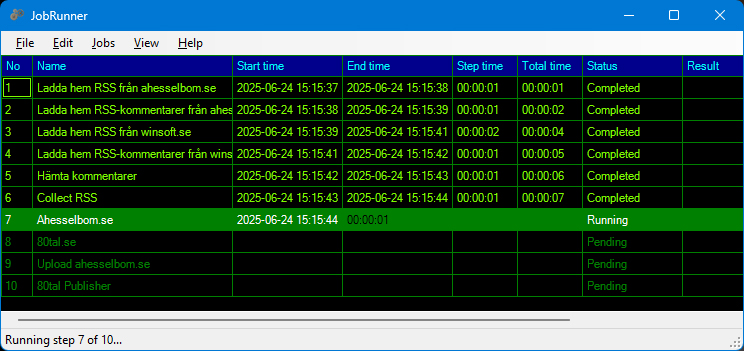
Some programs earn their place in your daily routine by doing one useful thing reliably. JobRunner is one of those programs for me.
Its purpose is straightforward: it lets you define a sequence of jobs, run them on command, and monitor their progress from a Windows application. Those jobs can launch other programs or perform built-in operations such as downloading text, deleting a file, or uploading a file.
That simple idea makes JobRunner useful for a surprisingly wide range of tasks. You can use it to generate a website on your own computer, calculate statistics, produce metadata, prepare files for publication, or coordinate several small utilities that need to run in a particular order.
I am giving the project a fresh start, with renewed attention to reliability and maintainability. This seems like a good moment to explain what JobRunner does, where it fits, and why I continue to find it useful.
Turning individual tools into a repeatable workflow
A useful workflow often consists of several programs rather than one large application.
You might have a script that collects information, another program that processes it, and a third tool that publishes the result. Each component does its job well, but running the entire sequence manually becomes tedious. You have to remember the order, wait for each step to finish, check the result, and decide whether it is safe to continue.
JobRunner gives that sequence a visible structure.
You define the jobs once, arrange them in the required order, and start the workflow when you need it. JobRunner runs the jobs sequentially and shows what is happening along the way.
The processing itself remains in the tools you already use. A job might launch a command-line utility, an executable you wrote yourself, or a scripting environment with the appropriate arguments. JobRunner supplies the coordination around those tools.
This makes it particularly useful when a workflow has grown beyond a few convenient commands but still benefits from being run and supervised locally.
Generating a website on your own computer
One use case I particularly like is generating a website on the client computer.
Many websites can be built ahead of time. Articles, navigation, indexes, feeds, statistics, and other content can be processed locally and published as finished files.
A workflow for that might look like this:
- Download source information or retrieve a feed.
- Run a program that transforms the information.
- Generate HTML pages.
- Generate supporting files such as indexes or metadata.
- Upload the resulting files.
JobRunner can coordinate those steps, using external tools where needed and its built-in jobs where they are suitable.
The website generator can remain focused on generating the website. The uploader can remain focused on transferring files. The workflow that connects them is recorded in JobRunner instead of depending on memory and a collection of manually executed commands.
This approach is useful for personal websites, project pages, archives, and other sites where content can be prepared before publication. It also gives you a local point of control: you decide when to regenerate the site and when to publish the output.
Statistics, reports, and metadata
The same pattern applies to work that has little to do with websites.
Generating statistics often involves several separate stages. You may need to collect input, clean or transform it, calculate results, and export those results into a useful format. If another program then turns the output into a report or a web page, that becomes another step in the sequence.
JobRunner can bring those stages together.
For example, a workflow could run a utility that reads local data, launch a script that calculates summary statistics, and then run another tool that produces a report. Each stage is visible as a separate job, making it easier to understand where a failure occurred.
Metadata generation is another good fit. A collection of documents, images, articles, or other files may need accompanying indexes or descriptions. External tools can extract information and produce structured output, while JobRunner controls the order in which those tools run.
The details depend on the programs you connect, but the underlying need is the same: repeat a known sequence without having to reconstruct it every time.
Control over how jobs run
JobRunner provides more than a list of commands.
Each job has a name, a command, arguments, and a timeout. Jobs can be enabled or disabled individually, so you can temporarily leave a step out of a workflow without deleting its configuration.
You can run the entire job list or run a selected job on its own. Running one job is particularly useful while developing a workflow or checking a particular step.
External processes can be configured to run with a visible or hidden window. This lets you choose whether a particular tool should appear on the desktop while it works.
Jobs also support retry settings. A failed operation can be attempted again, which is useful for failures that may be temporary. Whether a retry is appropriate depends on what the job does: an operation that safely overwrites its output is different from one that adds another record or sends another notification.
You can also choose whether an error should stop the sequence. This matters when later jobs depend on earlier output. If generation fails, for example, you may want to prevent the publication step from running.
Variables and file-based conditions
Repeated configuration becomes easier to maintain when shared values are defined in one place.
JobRunner supports variables in job arguments, using placeholders such as [OutputFolder]. This is useful for values that appear in several jobs, including directories, filenames, and other shared settings.
Variable names are case-insensitive. Their values are substituted in a single pass, so bracketed text inside a value remains literal text rather than being expanded again.
Jobs can also have file-based run conditions. A job can run when a specified file exists, when it does not exist, or when it exists and has been modified within the last three hours.
These conditions are useful for workflows driven by the presence or freshness of an input file. For example, a processing step can depend on an expected file being available, or a generation step can be limited to recently changed input.
Built-in file and network operations
Some common tasks are available directly in JobRunner:
- Delete a file.
- Download text to a file.
- Upload a file using FTP.
These built-in jobs reduce the need for small helper programs for routine operations. External programs remain available for more specialised processing or other transfer methods.
The distinction is useful: JobRunner provides a few convenient building blocks while allowing the workflow to grow through the tools you choose to run.
Seeing what happened
A repeatable workflow should also be understandable when something goes wrong.
JobRunner displays job status, start and end times, elapsed time, and process results. It supports logging to a file, giving you a record to inspect after a run.
External programs communicate success or failure through their exit codes: zero indicates success, while a nonzero value is treated as failure. This makes meaningful exit codes an important part of writing scripts that work well with JobRunner.
The application also supports automatic startup of the job sequence when JobRunner opens, and automatic closing after a successful workflow. These options are separate from scheduling: the workflow still needs something to launch the application.
Job and variable definitions are stored in XML files. The application provides editing facilities when started as an administrator, and the files can also be maintained manually. Running without administrator privileges provides a read-only interface to the configuration while still allowing jobs to run with the permissions of the current account.
A renewed focus on reliability
Because JobRunner is important in my daily work, I want to make its implementation easier to maintain and its behaviour more dependable.
Recent improvements address several practical issues: more consistent variable substitution, cleaner state handling during retries, safer movement of jobs in the list, and proper release of process resources.
The execution flow has also received attention. Stopping a workflow now requests cancellation of the current work and prevents further jobs or retries from starting. The application waits for that work to end before allowing another run. Closing the window during execution follows the same principle.
There is a deliberate boundary here: JobRunner controls the external process it starts. It does not attempt to take control of separately launched child processes. Scripts that create additional processes remain responsible for managing them.
Interface updates now go through the Windows UI thread, and the job display uses snapshots of execution state. Saving job and variable XML files is safer as well: the application validates the XML and writes a temporary file before replacing the existing file.
These changes are supported by regression tests covering execution, cancellation, retries, interface behaviour, and saving failures.
A useful place for small tools to work together
What keeps JobRunner useful to me is its ability to connect programs that already do valuable work.
A website generator, a statistics script, a metadata utility, and a file transfer tool do not need to become one application to form a dependable workflow. They need a clear order, useful settings, visible results, and sensible handling when a step fails.
That is the role JobRunner plays.
If you regularly run the same collection of tools to generate, process, or publish information, JobRunner may be worth a look. It gives those individual commands a repeatable sequence—and gives you a clearer view of the work they are doing.
Source code and installation program: https://github.com/Anders-H/JobRunner/blob/master/README.md

Leave a Reply