Continued from here.
Now I want to enable shooting. When the user presses the Control key, I create a bullet, sets its properties and adds it to the engine. This code is added to the KeyDown event. I have to modify the KeyUp event, because in the previous version, it unconditionally made the ship stop. Now when more keys are involved, I only want the ship to stop if it is the up or down buttons are released.
This is the new version of the KeyDown event:
   Private Sub Form1_KeyDown(ByVal _
sender As Object, ByVal e As System.Windows.Forms.KeyEventArgs) Handles Me.KeyDown
      If e.KeyData = Keys.A Then

         'If user presses "a", move up!
         Me.PlayerMover.DestY = 0
         Me.PlayerMover.SpeedY = -2

      ElseIf e.KeyData = Keys.Z Then

         'If user presses "z", move down!
         Me.PlayerMover.DestY = SpriteSurface1.Height
         Me.PlayerMover.SpeedY = 2

      End If

      If (e.KeyData And Keys.ControlKey) = Keys.ControlKey Then

         'If user presses Control, fire!
         Dim Bullet As New SCG.TurboSprite.PolygonSprite(2, 0, -2, 1, -2, -1)
         Bullet.Position = New Point(Player.Position.X + 15, Player.Position.Y + 9)
         Bullet.Color = Color.Cyan
         SpriteEngineDestination1.AddSprite(Bullet)
         Dim BulletMover As SCG.TurboSprite.DestinationMover = _
SpriteEngineDestination1.GetMover(Bullet)
         BulletMover.Destination = New Point(SpriteSurface1.Width + 5, _
Bullet.Height)
         BulletMover.SpeedX = 4

      End If
   End Sub
This is the new version of the KeyUp event:
   Private Sub Form1_KeyUp(ByVal sender As _
Object, ByVal e As System.Windows.Forms.KeyEventArgs) Handles Me.KeyUp

      'Stop moving, but only if "a" or "z" is released.
      If e.KeyData = Keys.A Or e.KeyCode = Keys.Z Then
         Me.PlayerMover.SpeedY = 0
      End If

   End Sub
Finally, when a bullet reaches its destination at the right end of the screen, I want it deleted. Check the SpriteReachedDestination event in the final code listing below.
When this is all working, I want to add an enemy and use the collision detection to see if it was killed. I did not subclass the PolygonSprite, and this is really something you should do to be able to tag the sprites. The “ugly hack” of this post, must be that I use color to determine if the sprite is a bullet, or the enemy. This is the complete code:
Public Class Form1

   'A reference to the player (created in the Shown event) and the mover.
   Private Player As SCG.TurboSprite.PolygonSprite
   Private PlayerMover As SCG.TurboSprite.DestinationMover

   Private Sub Form1_Shown(ByVal sender _
As Object, ByVal e As System.EventArgs) Handles Me.Shown

      'Set the desired number of frames per second and activate the surface.
      SpriteSurface1.DesiredFPS = 40
      SpriteSurface1.Active = True

      'Create the player and save the reference.
      Me.Player = New SCG.TurboSprite.PolygonSprite(-20, -10, 20, 10, -20, 10)

      'Set player original position.
      Me.Player.Position = New Point(100, 100)

      'Set player color.
      Me.Player.Color = Color.Yellow

      'Add the player to the sprite engine.
      SpriteEngineDestination1.AddSprite(Me.Player)

      'Save a reference to the mover.
      Me.PlayerMover = SpriteEngineDestination1.GetMover(Me.Player)

      'Now, add an ENEMY!
      Dim Enemy As New SCG.TurboSprite.PolygonSprite(-30, 20, 0, -20, 30, 20)
      Enemy.Position = New Point(SpriteSurface1.Width, SpriteSurface1.Height)
      Enemy.Color = Color.Red
      SpriteEngineDestination1.AddSprite(Enemy)
      Dim EnenyMover As SCG.TurboSprite.DestinationMover = _
SpriteEngineDestination1.GetMover(Enemy)
      EnenyMover.Speed = 1
      EnenyMover.Destination = New Point(-50, 100)

   End Sub

   Private Sub Form1_KeyDown(ByVal sender As _
Object, ByVal e As System.Windows.Forms.KeyEventArgs) Handles Me.KeyDown
      If e.KeyData = Keys.A Then

         'If user presses "a", move up!
         Me.PlayerMover.DestY = 0
         Me.PlayerMover.SpeedY = -2

      ElseIf e.KeyData = Keys.Z Then

         'If user presses "z", move down!
         Me.PlayerMover.DestY = SpriteSurface1.Height
         Me.PlayerMover.SpeedY = 2

      End If

      If (e.KeyData And Keys.ControlKey) = Keys.ControlKey Then

         'If user presses Control, fire!
         Dim Bullet As New SCG.TurboSprite.PolygonSprite(2, 0, -2, 1, -2, -1)
         Bullet.Position = New Point(Player.Position.X + 15, Player.Position.Y + 9)
         Bullet.Color = Color.Cyan
         SpriteEngineDestination1.AddSprite(Bullet)
         Dim BulletMover As SCG.TurboSprite.DestinationMover = _
SpriteEngineDestination1.GetMover(Bullet)
         BulletMover.Destination = New Point(SpriteSurface1.Width + 5, _
Bullet.Height)
         BulletMover.SpeedX = 4

      End If
   End Sub

   Private Sub Form1_KeyUp(ByVal sender As Object, ByVal _
e As System.Windows.Forms.KeyEventArgs) Handles Me.KeyUp

      'Stop moving, but only if "a" or "z" is released.
      If e.KeyData = Keys.A Or e.KeyCode = Keys.Z Then
         Me.PlayerMover.SpeedY = 0
      End If

   End Sub

   Private Sub SpriteEngineDestination1_SpriteReachedDestination(ByVal sender As _
Object, ByVal e As SCG.TurboSprite.SpriteEventArgs) Handles SpriteEngineDestination1.SpriteReachedDestination
      'You really should subclass the bullet to be able to
      'tag it as a bullet. I use color. Hack!!!
      Dim P As SCG.TurboSprite.PolygonSprite = CType(e.Sprite, SCG.TurboSprite.PolygonSprite)
      If P.Color = Color.Cyan Then
         P.Kill()
         SpriteEngineDestination1.RemoveSprite(P)
      End If
   End Sub

   Private Sub SpriteSurface1_SpriteCollision(ByVal sender As _
Object, ByVal e As SCG.TurboSprite.SpriteCollisionEventArgs) Handles SpriteSurface1.SpriteCollision
      'Did the player shoot the enemy? Is one a bullet and one the enemy?
      'Again, I use color. Hack!!!
      Dim FirstSprite As SCG.TurboSprite.PolygonSprite = CType(e.Sprite1, _
SCG.TurboSprite.PolygonSprite)
      Dim SecondSprite As SCG.TurboSprite.PolygonSprite = CType(e.Sprite2, _
SCG.TurboSprite.PolygonSprite)
      If FirstSprite.Color = Color.Cyan Then
         'We have a bullet.
         If SecondSprite.Color = Color.Red Then
            'And the enemy.
            SecondSprite.Kill()
            SpriteEngineDestination1.RemoveSprite(SecondSprite)
         End If
      ElseIf FirstSprite.Color = Color.Red Then
         'We have the enemy.
         If SecondSprite.Color = Color.Cyan Then
            'And a bullet.
            FirstSprite.Kill()
            SpriteEngineDestination1.RemoveSprite(FirstSprite)
         End If
      End If
   End Sub

End Class
Again, subclass and add your own properties! Do not use color to determine what sprite you are dealing with. This is the result:
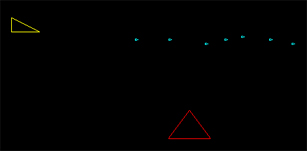
Thank you, TurboSprite!
