Anders Hesselbom
Programmerare, skeptiker, sekulärhumanist, antirasist.
Författare till bok om C64 och senbliven lantis.
Röstar pirat.
Monkeybone: Creating a bar diagram using Notepad part 4/4
2009-11-04
Continued from here.
To finish this, I want to add some effects, and save it as a png file.
Adding shadows
To add shadows behind each bar, just add the Shadowed argument to each bar. Example:
DiagramBar #ff0000 X:25 Y:0 W:20 H:200 Label="Apples" Value="1" Shadowed
Adding gradient background
To give the image a gradient background, replace the color argument with a VGrad or HGrad. VGrad does a vertical gradient and HGrad does a horizontal. Example:
The changes I have made is marked with bold font.
//Set image size and background color.
Clear 400x300 VGrad:#d0d0d0-#f0f0f0

//Create a white diagram.
Diagram #ffffff X:25 Y:40 W:350 H:230 "Some fruit"

//Create 5 bars.
DiagramBar #ff0000 X:25  Y:0 W:20 H:200 Label="Apples"  Value="1" Shadowed
DiagramBar #00ff00 X:95  Y:0 W:20 H:50  Label="Pears"   Value="2" Shadowed
DiagramBar #0000ff X:165 Y:0 W:20 H:150 Label="Oranges" Value="3" Shadowed
DiagramBar #ff00ff X:235 Y:0 W:20 H:180 Label="Peaches" Value="4" Shadowed
DiagramBar #f2f200 X:305 Y:0 W:20 H:100 Label="Grapes"  Value="5" Shadowed
This is the result:
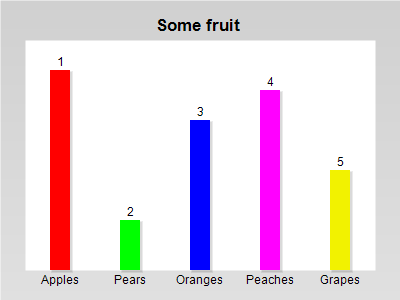
If your pictures didn’t come out as expected, you can check the error log in the View window. This video shows these steps. Also, the png export feature is shown.
Categories: General
Tags: Monkeybone
One response to “Monkeybone: Creating a bar diagram using Notepad part 4/4”
Leave a Reply
En kopp kaffe!
Bjud mig på en kopp kaffe (20:-) som tack för bra innehåll!


Följ mig

|

|

|

|

[…] The Monkeybone Viewer takes a mob file and displays its content on screen. The file stores instructions, such as Bar and Line, as Unicode text. These files can be created by hand using any text editor, such as Notepad (shown here, here, here and here). […]